
This comprehensive guide will help you install, set up, and customize your Tinyplay Pro theme to create a professional and engaging website for your Tinyplay pre school.
Tinyplay Pre school Pro Theme Documentation
Introduction
This kit is designed to help you create a modern, professional, and user-friendly home cleaning website with ease. Whether you offer residential cleaning, deep cleaning, move-in/move-out services, or specialized home care, this template kit includes all the essential features to highlight your services and attract new clients effortlessly.
Customizing Your Website
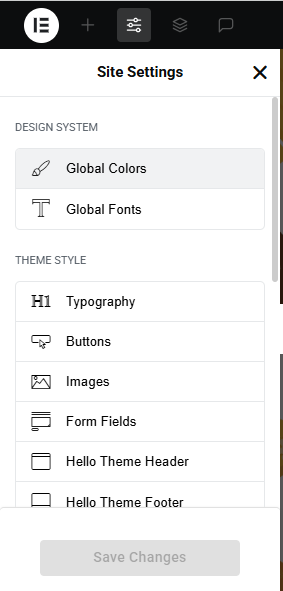
Global Settings
To set global styles:
- Go to Elementor > Site Settings.
- Adjust typography, colors, and layout settings.
Header & Footer Setup
- Use Elementor Theme Builder to edit the header and footer.
- Customize the navigation menu, logo, and contact details.
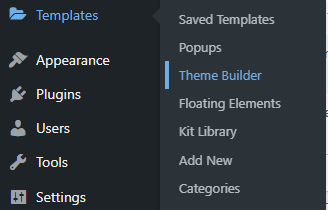

You can drag and drop the elementor widget’s menu first. If you’d like, you can add items or simply drag each one, after which you can add a icon list from the widget and apply a custom style from the style option.


you can add newslatter form, timing, contact details, logo, menu and if you wish in footer, and create you best design.
Home Page Setup
Using Pre-Built Layouts
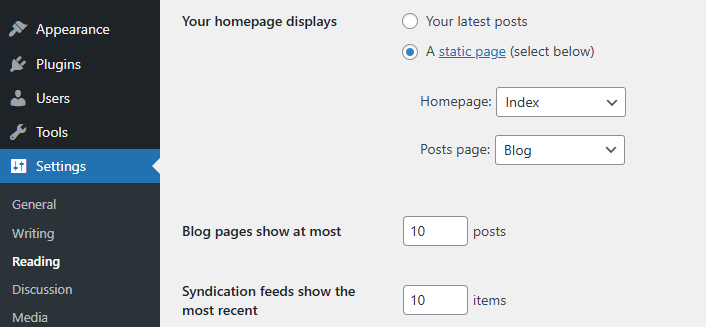
Navigate to Setting >> Reading
Choose the Static Page option.
Choose an existing homepage or create a new one.
Add The Section in home page using elementor
Add components such as these using the Drag & Drop Builder:
- Hero Section
- about section
- learning step
- achievements section
- popular Classes
- facility section
- activity section
- team section
- review section
- time table section
- CTA Section
- Contact section
Main Hero Section

Step 1: Add a New Section
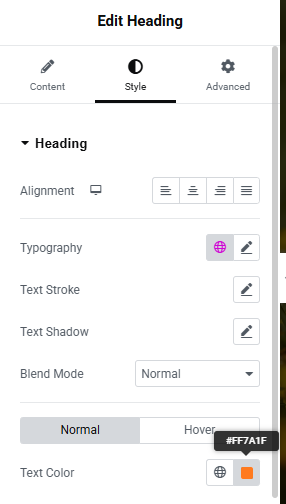
- Set Section Background Color
- Select the Section → Go to the Style tab.
- Set a Background Color
- Left Column – Add Content
- 1. Heading Widget (Main Title)
- 2. Text Editor Widget (Subtitle)
- 3. Text Editor Widget (Paragraph)
- 4. Button Widget
- style of each widget
Step 4: Right Column – Add Image
- Drag in an Image widget.
- Upload a high-quality image of a happy child
- Under the Style tab, set:
- Max Width: 100%
- Alignment: Center
- Image Size: Full
- Custom Padding/Margin to align vertically with text
About section

Step 1: Add a Two-Column Section
- Add Left Side Image
- Drag and drop the Image Widget into the left column.
- Upload or choose the image from your media library.
- Go to the Style tab:
- Set Image Size to “Full”
- Adjust Max Width or Padding for spacing
Add Right Side Content
- 1. Heading Widget (Title)
- Drag in a Heading widget.
- Go to the Style tab to set:
- Font size: ~35–45px
- Font weight: Bold
- 2. Text Editor Widget (Subtitle)
- Style it for different font or color.
- 3. Text Editor Widget (Description)
- Add another Text Editor widget.
- Icon Box Widget
- Drag in the Icon Box widget.
- Button Widget
- Drag in a Button widget
Learning step

Add a New Section
- Add Image Box Widgets
- Inside each column, click the ➕ plus icon.
- Search for “Image Box” in the widget panel.
- Drag and drop the Image Box into the first column.
- Repeat for the second and third columns.
Customize Each Image Box
- Image
- Click the image and upload or choose an image
- Title
- Replace with your step title
- Description
- Add a short description
Style the Section
- Select the entire section > go to Style tab.
- Background Color: Optional
- Padding: Add space inside the section
Select each Image Box > go to Style tab:
- Image: Adjust size and alignment
- Title: Set font size, weight, and color
- Description: Style for readability
- add border of inside the image box
Achievements Section

Drag in “Counter” Widgets
- In the Elementor Widgets Panel, search for Counter.
- Drag and drop one Counter widget into each column.
- Edit Each Counter
- Start Number: Usually 0
- End Number: e.g., 150, 2000, etc.
- Number Prefix/Suffix: e.g., +, %, etc.
- Title: e.g., “Happy Clients”, “Projects Completed”
Style the Counters
- Customize:
- Number Color & Typography
- Title Typography
- Spacing
- Alignment (center is most common)
Popular Classes

Add a New Section
- Add an Inner Section (2 Rows)
- Drag and drop the “Inner Section” widget into each column.
- In each Inner Section:
- Right-click on the column handle > Duplicate the row once.
- Now each column will have 2 rows = total 4 content blocks.
Left Column – Add Image
Right Column – Add Class Details
- In the right column, add a Heading widget for the class Title.
- Add a Text Editor widget for Age.
- Add another Text Editor widget for Time.
- Add another Text Editor widget for Capacity.
- Finally, add a Button widget
- Style the Section
- Padding: 50px top/bottom
- Background: Light or custom color
- Image Style:
- Set Image Radius (e.g., 10px)
- Box Shadow (optional)
- Text Style:
- Title: Bold, 20–24px
- Age/Time/Capacity: 14–16px
- Button: Use primary color,
Facility Section

Add a New Section
Left Column – Add Facility Image
- Click on the left column.
- Drag in the “Image” widget.
- Upload or select a facility-related image
Right Column – Add Title and Subtitle
- In the right column, drag a “Heading” widget.
- Below it, add a “Text Editor” widget.
- Write a short subtitle or description
- Add an Inner Section for Facility Boxes
- drag in an “Inner Section” widget.
- Set it to 3 columns or 2 row
- Add Facility Image Boxes
- Drag in an “Image Box” widget.
- Upload or choose an icon/image representing the facility
- Add a title under the image
- Add a short description
- Repeat this for all 6 boxes.
- Style the Section
- Padding: Top/Bottom (40–60px)
- Background: Light color or white
- Image Style:
- Text Style: Adjust font, color, and spacing
- Spacing:
- Add margin or padding between image boxes if needed
Best Activity Section

Add a New Section
- Left Column – Add Main Image
- Click the left column.
- Drag and drop the Image widget into this column.
- Upload or choose the image you want
Right Column – Add Text and Image Boxes
- Drag a Heading widget
- Style: Choose font size, color, and weight.
- Drag a Text Editor widget
Add 2 Image Boxes
- drag in an Image widget.
- Upload your two activity images.
- Optionally, add Captions using a Text Editor widget below each image.
- Adjust Spacing and Style
- Use padding/margin settings
Team Section

Step 1: Add a New Section
Step 2: Add Section Title
- Drag a Heading widget
- Set the content:
- Subtitle:
- Main Title:
- Style:
- Align: Center
- Font: Playful or clean (like Pacifico, Baloo, Poppins)
- Size: 36–48px for the title
- Color: Black for title, lighter gray or pink for subtitle
- Add Image Box Widget for Each Team Member
- Configure each Image Box:
- Choose Image: Upload a team member’s photo.
- Title: Name
- Description: Role
- Style the Image Box
- Image:
- Title Style:
- Font: Handwritten or friendly font
- Size: 18–22px
- Color: Pink or Theme Primary
- Description Style:
Duplicate for More Members
- Right-click each Image Box and click Duplicate to copy styles.
- Replace image, name, and role for each team member.
Testimonial Section

Add the Testimonial Carousel Widget
- In the Elementor panel, search for “Testimonial Carousel.”
- Drag it into your desired section on the page.
Customize the Slides
- Under the Content tab → open the Slides section.
- You’ll see 3 default slides. Click each one to:
- Add the review text
- Upload the client image
- Enter the client’s name and title
- Adjust Layout & Style
- Set Slides Per View to 1 or 3 depending on your design
- Enable/disable pagination and navigation arrows
Style the Section
- Switch to the Style tab:
- Slides: Set spacing, background, borders
- Content: Customize fonts, colors, spacing
- Image: Adjust size, border radius
- Navigation: Style arrows and dots
Time Table Section

Add a New Section
- Choose the 3-column layout.
- Insert Content into Each Column
- Drag a Heading widget into each column for the Class Name.
- Below that, drag a Text Editor widget for the Time.
Style Your Timetable
- Fonts, colors, and spacing under the Style tab
- Add borders or background colors to each column for separation
- Use Padding/Margin to create breathing room
CTA Section

Add a New Section
- Insert Title and Description
- Drag a Heading widget into the section → Add your CTA title (e.g., “Stay Updated!”).
- Drag a Text Editor widget below it → Add a short description (e.g., “Subscribe to our newsletter for the latest updates.”).
Add the Email Form
- If using Elementor Pro:
- Drag the Form widget below the description.
- Add a “Email” field and a Submit button.
- Under Actions After Submit, choose Email or Mailchimp (if integrated).
Style the Section
- Use the Style tab to:
- Center-align text and form
- Add padding, background color, or image
- Customize fonts, button color, and spacing
Contact Section

Add a Two-Column Section
Left Column: Add the Contact Form
- If using Elementor Pro:
- Drag the Form widget into the left column.
- Add fields like Name, Email, Message.
- Under Actions After Submit, choose Email or integrate with Mailchimp, etc.
Right Column: Add Contact Details with Icons
- Drag an Icon List widget
- add item
- address, phone number, email address and working hours
Style the Section
- Add background color or image
- Adjust padding/margin for spacing
- Style icons and text (color, size, spacing)
The TinyPlay Preschool website template is thoughtfully designed to help early childhood education centers create a fun, engaging, and trustworthy online presence. With its vibrant visuals, easy-to-navigate layout, and child-friendly design, this template is perfect for showcasing your programs, staff, testimonials, and enrollment details. Whether you’re running a daycare, preschool, or learning center, TinyPlay makes it simple to connect with parents and build confidence in your services. Start creating a nurturing and joyful digital space that reflects your passion for early learning with TinyPlay today!